
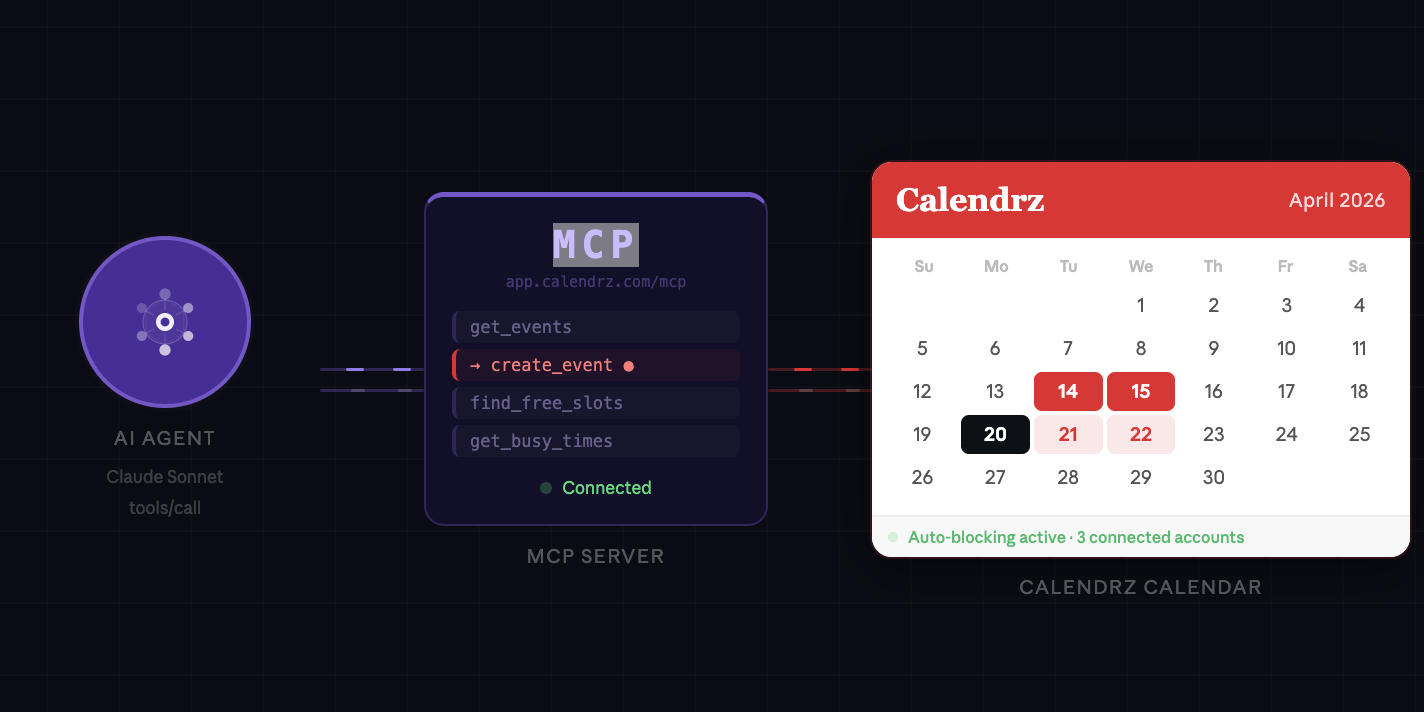
Claude already has a Google Calendar connector. It’s useful — you can ask Claude to look at your schedule, add a meeting, that kind of thing. But it’s one calendar, from one provider, on one AI. If you live in more than one calendar, or you use Outlook, or you just want your AI to do more than poke at Google’s surface, there’s been a gap.
That gap is what we’ve just filled. Calendrz now exposes a full calendar-management surface through its MCP server — seventeen tools that let Claude, or any MCP-capable client, create, move, cancel, RSVP to, and reshape events across every calendar you’ve connected to Calendrz, Google and Microsoft alike.
Where Calendrz goes further than the Google Calendar connector
The short version: the Google Calendar connector is a single-calendar, single-provider, Google-only add-on. Calendrz is the whole picture.
- Microsoft, too. The Google connector does exactly what its name says. Calendrz manages Outlook / Microsoft 365 events alongside Google — same tools, same prompts. If half your meetings live in Teams, Calendrz is the only option that sees both.
- Every account at once. Most people have more than one calendar — work, personal, side project, family. The Google connector sees the one account you authorised. Calendrz sees every connected account on your Profile, so “find me a free hour next week” actually means free across your whole life, not just the one inbox you signed in with.
- Propose a new time — properly. Microsoft Graph supports counter-proposals as a first-class operation. We wire that up natively: ask Claude to propose 4 pm instead of 3 pm and the organiser gets a real counter-proposal. Google Calendar exposes that feature only in its own apps, not through its API — so on Google events Calendrz does exactly what the Google mobile and web UIs do: reply tentative, attach the proposed time as a comment, tell you that’s what happened. Either way, the message lands.
- Microsoft Teams links, not just Google Meet. Add or remove a video conference and Calendrz picks the right provider for the event — Meet on Google, Teams on Microsoft. The Google connector can’t touch a Teams link.
- Delete that understands who you are. Ask Calendrz to cancel a meeting and it does the right thing based on your role: if you organised it, the event is cancelled and attendees are notified; if you’re an attendee, it’s a polite decline on your behalf. One verb, correct semantics.
- Explicit recurring-scope choice. Every mutation on a recurring event asks the same question Google Calendar and Outlook ask you in their own UIs — just this occurrence, this and following, or the whole series? The AI surfaces that choice instead of guessing.
- You control whether attendees are notified. Every mutation tool exposes a notify attendees toggle. Reshape quietly or loudly — your call, not the platform’s.
- Not tied to one AI. The Google Calendar connector lives inside Claude.ai. The Calendrz MCP server is a standard MCP endpoint, usable from Claude, from any other MCP-capable client, and from the agents you build yourself.
- Availability mirroring keeps working underneath. Anything the AI creates, moves, or cancels flows through Calendrz’s existing availability mirroring — so the busy/free blocks on your other calendars stay correct automatically. The Google connector writes to one calendar and stops. Calendrz keeps the rest of your week honest.
What your AI can now do
The new tools fall into three groups.
See the shape of your week
- List calendars across every connected account.
- Look up an event or expand a recurring series.
- Get busy times and find free slots, optionally constrained to your working hours.
- Check who has replied to an invite and who hasn’t.
Create and change events
- Create a new event — with attendees, recurrence, and a video-conference link if you want one.
- Update an event’s title, description, time, location, or visibility.
- Move a single occurrence or an entire recurring series.
- Delete or cancel, with the organiser-vs-attendee smarts described above.
- Add or remove attendees by email.
- Add or remove a video conference — Meet on Google, Teams on Microsoft.
Respond to invites
- Accept, decline, or tentatively accept — with an optional comment.
- Propose a new time to the organiser.
What this looks like in practice
Once you’ve connected Calendrz to an MCP client such as Claude.ai, the natural-language prompts do the work. A few examples:
- “Reschedule my 3 pm to Thursday at the same time.”
- “Decline the marketing sync on Wednesday, politely.”
- “Book 30 minutes with Alex tomorrow afternoon and add a Google Meet.”
- “Find me a free hour next week for a new-hire 1:1, after 10 am — across all my calendars.”
- “Propose 4 pm instead of 3 pm for tomorrow’s review.”
- “Add sarah@acme.com to the design review on Friday.”
- “Cancel next Tuesday’s standup and let the team know.”
- “RSVP tentative to the all-hands and add a note that I might be travelling.”
- “Set up a recurring 1:1 with my manager on my work Outlook and add a Teams link.”
The last two are things the Google Calendar connector simply can’t do.
Which plan includes it
Calendar management is a paid feature. It ships automatically on all Calendrz paid tiers — Basic, Plus, Pro, and Ultimate — and is not available on the Free tier. If you’re already on a paid plan, there is nothing to turn on; connect Calendrz to your MCP client and the new tools appear. If you’re on Free and want to use this, upgrading takes a minute.
Getting started
If you’ve already linked Calendrz to Claude.ai or another MCP client, you’re done — the new tools are live. If not, open Calendrz, go to MCP integrations, and follow the short connection flow. From there, ask your AI to look up, move, cancel, or create anything — on any of your connected calendars.
The Google Calendar connector gave your AI a window. Calendrz gives it the keys.