
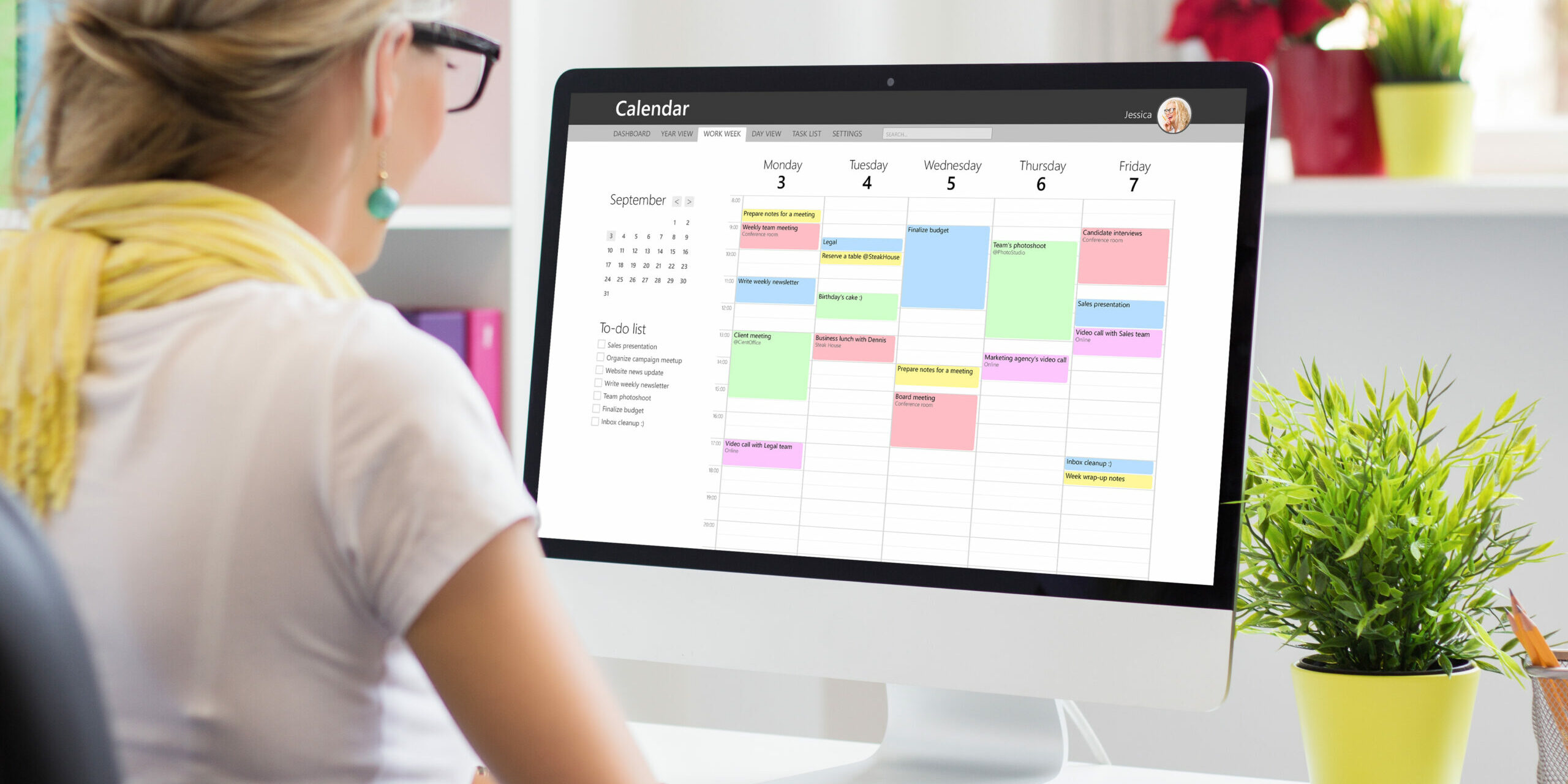
What if you could manage your calendar just by talking to an AI? With the Calendrz MCP Server, you can. Whether you use Claude.ai or ChatGPT, you can now query your calendar events, adjust sync settings, and manage connected accounts — all through natural conversation.
In this post, we’ll walk you through what the MCP Server is, how to connect it, and exactly which tools are available on each Calendrz subscription tier.
What Is MCP (Model Context Protocol)?
The Model Context Protocol is an open standard that lets AI assistants connect to external services in a secure, structured way. Instead of copy-pasting data into a chat window, MCP allows your AI assistant to directly call tools provided by a service — reading data, performing actions, and returning results — all within your conversation.
Think of it as giving your AI assistant a set of buttons it can press on your behalf, with your explicit permission and authentication.
How the Calendrz MCP Server Works
Calendrz exposes an MCP-compatible server at https://app.calendrz.com/mcp. It uses OAuth 2.1 with automatic client registration, so connecting is straightforward — no API keys to manage, no developer setup required.
Connecting from Claude.ai
- Open Claude.ai Settings > Connectors (or Integrations)
- Click Add Custom Connector
- Enter the MCP server URL:
https://app.calendrz.com/mcp - Claude will discover the OAuth metadata automatically
- Click Authorize — sign in with your Google or Microsoft account
- Done! Claude can now use your Calendrz tools
Connecting from ChatGPT
- Open ChatGPT Settings > Connected Apps
- Click Add Connection
- Enter the MCP server URL:
https://app.calendrz.com/mcp - Follow the OAuth authorization flow (sign in with Google/Microsoft)
- Once connected, ChatGPT can access your Calendrz tools
Authentication is handled via JWT tokens that expire after 60 minutes, with refresh tokens valid for 30 days. Your Google and Microsoft OAuth tokens are never exposed through the MCP interface.
The 10 MCP Tools
The Calendrz MCP Server provides 10 tools, organized into three categories: read-only tools for viewing data, write tools for changing settings, and account management tools for managing your connected calendars.
Read-Only Tools
| Tool | What It Does |
|---|---|
get_events |
Retrieve calendar events from all your connected accounts (Google, Microsoft) with optional date range filtering. Returns a merged, chronological list with event details including title, start/end times, all-day flag, and free/busy status. |
get_profile |
Get your Calendrz profile — name, email, current subscription tier, subscription status, and a list of your connected calendar accounts. |
get_mirror_preferences |
View your calendar sync and mirror settings, including account-level options (like whether to import tentative events or free-time entries) and per-account overrides. |
get_tiers |
See all available Calendrz subscription tiers with their features, limits, pricing, and sync frequency. |
get_config |
Get basic Calendrz app information like name, version, and trial notice settings. |
get_capabilities |
Discover exactly which MCP tools you can use based on your current subscription tier — so the AI knows what it can and can’t do for you. |
Write Tools
| Tool | What It Does |
|---|---|
save_mirror_preferences |
Update your sync settings — for example, toggle whether free-time entries are imported or change the visibility of calendar markers. Only the settings you specify are changed; everything else stays as-is. |
trigger_sync |
Trigger an immediate calendar synchronization. The sync runs asynchronously in the background and refreshes events from all your connected providers. |
Account Management Tools
| Tool | What It Does |
|---|---|
add_connected_account |
Get an OAuth URL to connect a new Google or Microsoft calendar account to Calendrz. Open the returned link in your browser to authorize the account. |
remove_connected_account |
Remove a connected calendar account from your Calendrz profile. Warning: this is destructive and irreversible — it permanently removes the account and deletes all mirrored events from it. |
Tools by Subscription Tier
Not all tools are available on every tier. Here’s what you get at each level (see our latest pricing for up-to-date rates):
| Tool | FREE | BASIC ($4.99/mo) | PLUS ($8.99/mo) | PRO ($14.99/mo) |
|---|---|---|---|---|
get_events |
✓ | ✓ | ✓ | ✓ |
get_profile |
✓ | ✓ | ✓ | ✓ |
get_mirror_preferences |
✓ | ✓ | ✓ | ✓ |
get_tiers |
✓ | ✓ | ✓ | ✓ |
get_config |
✓ | ✓ | ✓ | ✓ |
get_capabilities |
✓ | ✓ | ✓ | ✓ |
save_mirror_preferences |
✗ | ✓ | ✓ | ✓ |
trigger_sync |
✗ | ✓ | ✓ | ✓ |
add_connected_account |
✗ | ✗ | ✓ | ✓ |
remove_connected_account |
✗ | ✗ | ✓ | ✓ |
What Each Tier Includes Beyond MCP Tools
While all tiers give you access to the MCP server, the tiers also differ in platform-level features:
| Feature | FREE | BASIC | PLUS | PRO |
|---|---|---|---|---|
| Connected accounts | 2 | 2 | 3 | 5 |
| Lookahead period | 11 days | 11 days | 30 days | 30 days |
| Sync check interval | 60 min | 5 min | 5 min | 5 min |
| Push notifications | ✗ | ✓ | ✓ | ✓ |
| All sync settings unlocked | ✗ | ✗ | ✗ | ✓ |
The PRO tier unlocks every configurable setting — including importing tentative/maybe events, out-of-office event handling, unacknowledged meeting imports, and out-of-office auto-decline — giving you full control over how your calendars mirror.
Example Prompts to Try
Once you’ve connected Calendrz to Claude or ChatGPT, try asking:
- “Show me my calendar events for next week”
- “What calendars do I have connected?”
- “What’s my current subscription tier and what can I do with it?”
- “Enable importing free-time entries in my sync settings”
- “Sync my calendars now”
- “What subscription tiers are available and how do they compare?”
- “I want to connect a new Google calendar — give me the link”
- “Am I free tomorrow afternoon?”
The AI will call the appropriate Calendrz tools behind the scenes and respond with the information or confirmation you need.
Security and Privacy
We take security seriously. Here’s how the MCP server keeps your data safe:
- All requests require a valid JWT Bearer token — no anonymous access
- MCP requests are fully stateless (no server-side sessions)
- Your Google and Microsoft OAuth tokens are never exposed through MCP tools
- Profile data is sanitized — sensitive secrets like refresh tokens are never returned
- The
remove_connected_accounttool includes a destruction warning before proceeding - AI platforms register automatically via RFC 7591 Dynamic Client Registration — no manual API key setup
Get Started
If you already have a Calendrz account, you can connect right now — just add https://app.calendrz.com/mcp as a connector in Claude.ai or ChatGPT and authorize with your Google or Microsoft account.
If you’re new to Calendrz, sign up for free and start mirroring your calendars today. The FREE tier gives you read-only MCP access with up to 2 connected accounts — enough to explore how AI-powered calendar management feels.
Ready to unlock the full set of tools? Check out our pricing page to compare tiers and find the right fit.