
If you juggle multiple calendars — say, a personal Google Calendar and a work Outlook account — you’ve probably been double-booked at least once. Someone schedules a meeting on your work calendar while you already have a dentist appointment on your personal one. The result? Awkward cancellations, frantic rescheduling, and the nagging feeling that there has to be a better way.
There is. Calendrz automatically mirrors your availability across all your calendars so that busy time on one shows up as blocked time on the others. And the best part? You can set it up in under two minutes. Here’s how.
Step 1: Sign Up with Your Google Account
Head to app.calendrz.com and click Sign in with Google. That’s it — no separate username, no password to remember. Calendrz uses your Google account for authentication, so you’re in with a single click.
Once you’re signed in, you’ll see a setup checklist that walks you through each step visually. Think of it as a friendly co-pilot guiding you to full calendar harmony.
Step 2: Connect a Second Calendar Account
Calendrz shines when you connect at least two calendar accounts. From your dashboard, click Add Account and choose either:
- Another Google account — great for separating personal and freelance calendars
- Microsoft 365 / Outlook — ideal if your workplace runs on the Microsoft stack
Authorize the connection, and Calendrz will pull in your calendars automatically. On the free tier, you can connect up to two accounts — more than enough to bridge the gap between your personal and work lives.
Step 3: Choose Which Calendars to Mirror
Not every calendar needs to be synced. Maybe you have a “Birthdays” calendar or a shared team calendar that doesn’t affect your personal availability. Calendrz lets you pick exactly which calendars participate in mirroring.
For each calendar, you can set the mirror mode:
- Read & Write — events on this calendar create blockers on your other calendars, and vice versa
- Read Only — this calendar’s events create blockers elsewhere, but it won’t receive blockers itself
- None — this calendar is excluded from mirroring entirely
This gives you fine-grained control over what gets synced and where.
How Mirroring Actually Works
Here’s where Calendrz differs from traditional calendar sync tools. It doesn’t copy your events. Instead, it creates lightweight “marker” events — simple blockers that show you as busy during that time slot.
Why does this matter?
- Privacy first: Your work colleagues won’t see “Dentist Appointment” on your work calendar. They’ll just see that the time is blocked.
- No clutter: Marker events are clean and minimal — no duplicated attendees, descriptions, or attachments.
- Bidirectional: When you set calendars to Read & Write mode, the mirroring works in all directions automatically. Block time on Calendar A, and it shows as busy on Calendar B — and the reverse.
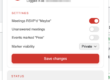
You can even customize the marker color and summary format to make blocked time instantly recognizable at a glance.
The Setup Checklist Has Your Back
If you’re the kind of person who likes visual progress, you’ll love the setup checklist. It appears as an overlay on your calendar view and tracks your progress through:
- Signing in
- Connecting a second account
- Selecting calendars to mirror
- Running your first sync
Each step is checked off as you complete it. Once you’re done, the checklist disappears and you’re left with a clean, synchronized calendar view.
What You Get on the Free Tier
Calendrz offers a generous free tier that includes:
- 2 connected accounts (e.g., one Google + one Outlook)
- 11-day lookahead — events up to 11 days in the future are mirrored
- Automatic sync every 60 minutes
- AI integration — 5 read-only MCP tools so Claude or ChatGPT can read your calendar
For many people, this is all they need. If you want faster syncing (every 5 minutes), more accounts, or advanced features like tentative-meeting handling and out-of-office automation, paid plans start at just $1.99/month.
Ready to Stop Getting Double-Booked?
Setting up Calendrz takes less time than making a cup of coffee. Head to app.calendrz.com, sign in with Google, connect your second account, and let Calendrz handle the rest.
Your calendars will finally talk to each other — without exposing your private life to your work colleagues.