
We’re excited to announce that Calendrz now fully supports Microsoft 365 accounts — alongside the Google Calendar support you already know and love.
Whether you use Outlook.com, Hotmail, Live, or a work Microsoft 365 account, you can now sign in to Calendrz and start mirroring your availability across all your calendars in minutes.
Sign in with Microsoft — one step, fully connected
When you sign in with your Microsoft account, Calendrz handles everything in a single step. There’s no separate “connect a calendar” flow — your Microsoft calendars are immediately available for availability mirroring the moment you log in.
This works for:
- Personal Microsoft accounts — Outlook.com, Hotmail, Live.com
- Work and school accounts — Microsoft 365 / Exchange Online (user@company.com)
Both account types use the same simple sign-in flow. Click “Continue with Microsoft 365”, authenticate with Microsoft, and you’re in.
Full calendar read, write, and auto-blocking
Microsoft accounts in Calendrz get the same powerful availability mirroring that Google accounts have always had:
- Read your calendars — Calendrz sees your busy and free time across all your Microsoft calendars
- Auto-block your time — when you’re busy in one connected account, Calendrz automatically creates blocker events in your other calendars to prevent double bookings
- Update and remove blockers — when a source event changes or is cancelled, the corresponding blockers are updated or removed automatically
Your private event details are never shared between accounts. Only the time slot is mirrored — the actual content of your events stays private.
Mix and match Google and Microsoft
The real power of Calendrz is connecting accounts across different platforms. Now you can:
- Sign in with Google and add a Microsoft 365 connected account
- Sign in with Microsoft and add a Google connected account
- Connect multiple Microsoft accounts and multiple Google accounts — all under one Calendrz profile
Busy in your work Microsoft 365 calendar? Your personal Google Calendar is automatically blocked. Got a dentist appointment in your personal Outlook? Your work calendar shows you as unavailable. No manual updates, no scheduling conflicts.
How to get started
Getting started with Microsoft takes less than a minute:
- New to Calendrz? Visit app.calendrz.com and click “Continue with Microsoft 365” to create your profile
- Already have a Calendrz profile? Log in, then add a Microsoft 365 connected account from your dashboard
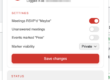
- Choose which calendars to mirror — pick the calendars you want Calendrz to protect, and auto-blocking starts immediately
That’s it. Once connected, Calendrz runs silently in the background, keeping your availability in sync across every calendar you care about.
Your time, protected everywhere
With Microsoft 365 support, Calendrz now covers the two largest calendar platforms in the world. No matter how many calendars you juggle — personal, work, freelance, side projects — your availability is automatically mirrored across all of them.
No double bookings. No manual updates. Just your time, protected everywhere.